
Navigating the app
VertaFlow keeps the sidebar tight by grouping related screens behind a handful of icons. Hover (or tap) a group to reveal its members. The fastest way to get anywhere, though, is the command palette.
The sidebar rail
Section titled “The sidebar rail”The left rail is a fixed, scroll-free column. A few high-traffic screens sit at the top level on their own:
- Dashboard
- Activity (your workspace’s audit/activity feed)
Everything else is collected into groups. Each group is a single icon; hovering it opens a flyout listing every screen inside. The stable groups are:
- Sales & Money — Deals, Estimates, Invoices, Payments, Contracts, Earnings, Checkout
- Customers — Clients, Leads, Loyalty
- Growth — Campaigns, Templates
- Insights — Reports
- Settings — Settings, Profile
Your vertical’s Operations group
Section titled “Your vertical’s Operations group”Between Home and Sales & Money sits one group that is built entirely from your vertical — both its name and what’s in it. This is where your trade’s day-to-day screens live, and it changes completely from one business type to the next:
- Restaurants get a Service group — Checkout, Menu, Orders, Floor, Kitchen, Kiosk, Loyalty, Tickets.
- Retail gets a Store group — Checkout, Products, Orders, Inventory, Kiosk, Loyalty.
- Wellness gets a Front desk group — Appointments, Bookings, Clients, Checkout, Packages, Kiosk, Loyalty, Tickets.
- Service pros get a Field group — Jobs, Appointments, Team, Tasks, Tickets, Kiosk.
- Agencies get a Delivery group — Projects, Tasks, Tickets, Appointments, Contracts.
Items are also renamed to fit your trade: “Clients” reads as “Guests” for a restaurant, “Checkout” replaces a generic point-of-sale, a restaurant’s catalog is the “Menu” while a shop’s is “Products,” and an agency’s jobs are “Projects.” Screens your vertical doesn’t use simply don’t appear. See How verticals work.
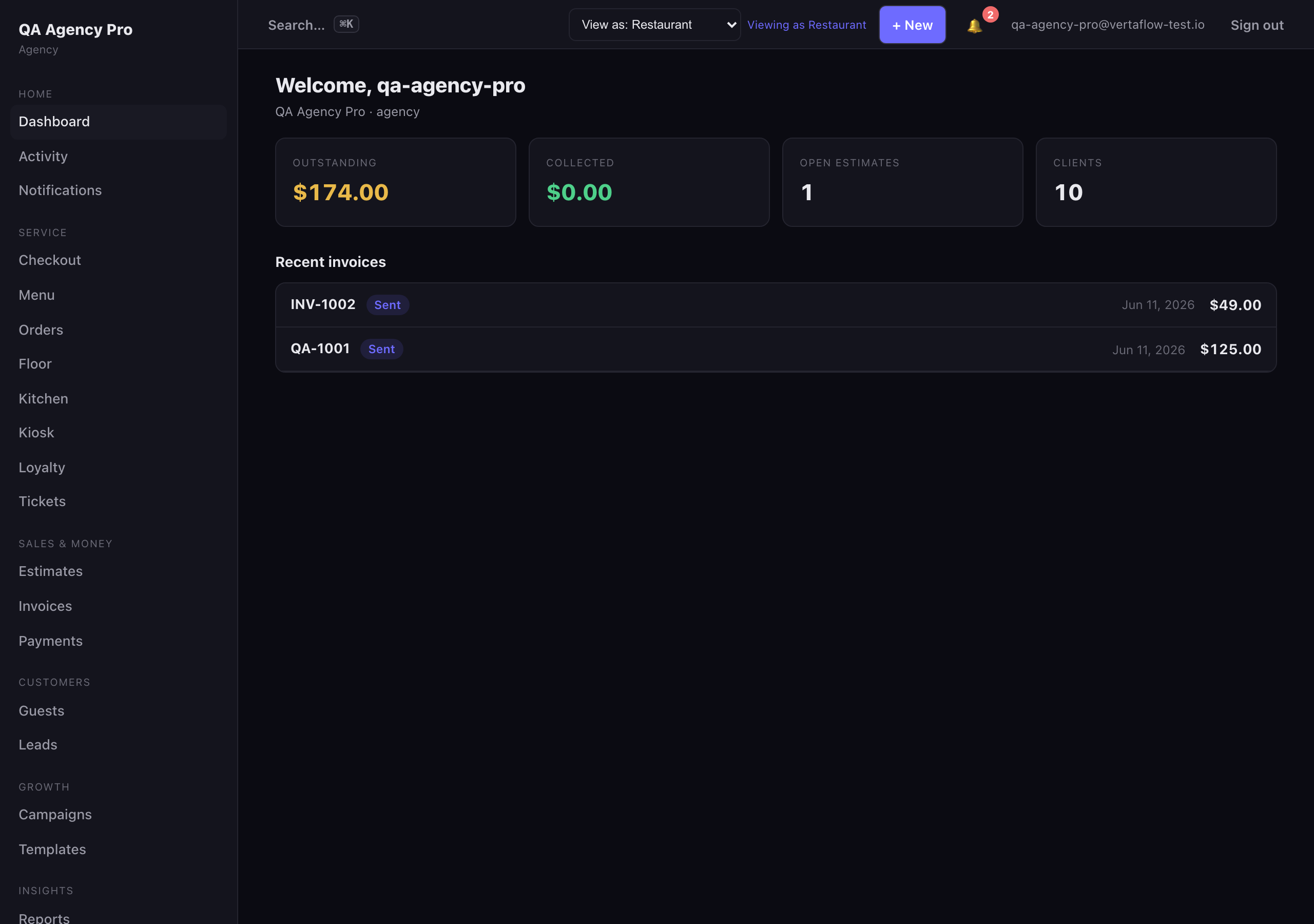
A restaurant sees a Service group with Floor, Kitchen, and Kiosk.
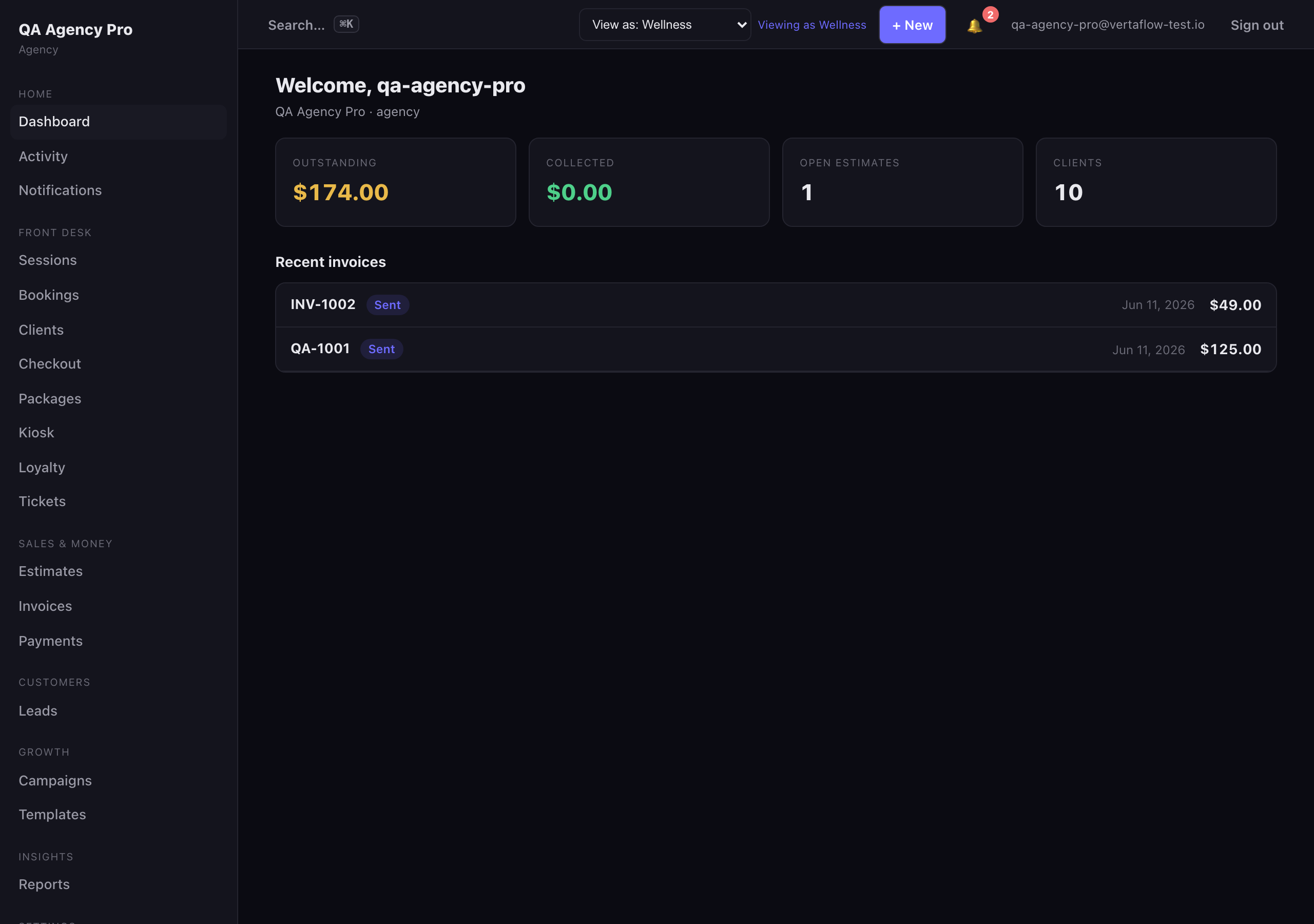
A wellness workspace gets a Front desk group with Appointments, Bookings, and Packages.
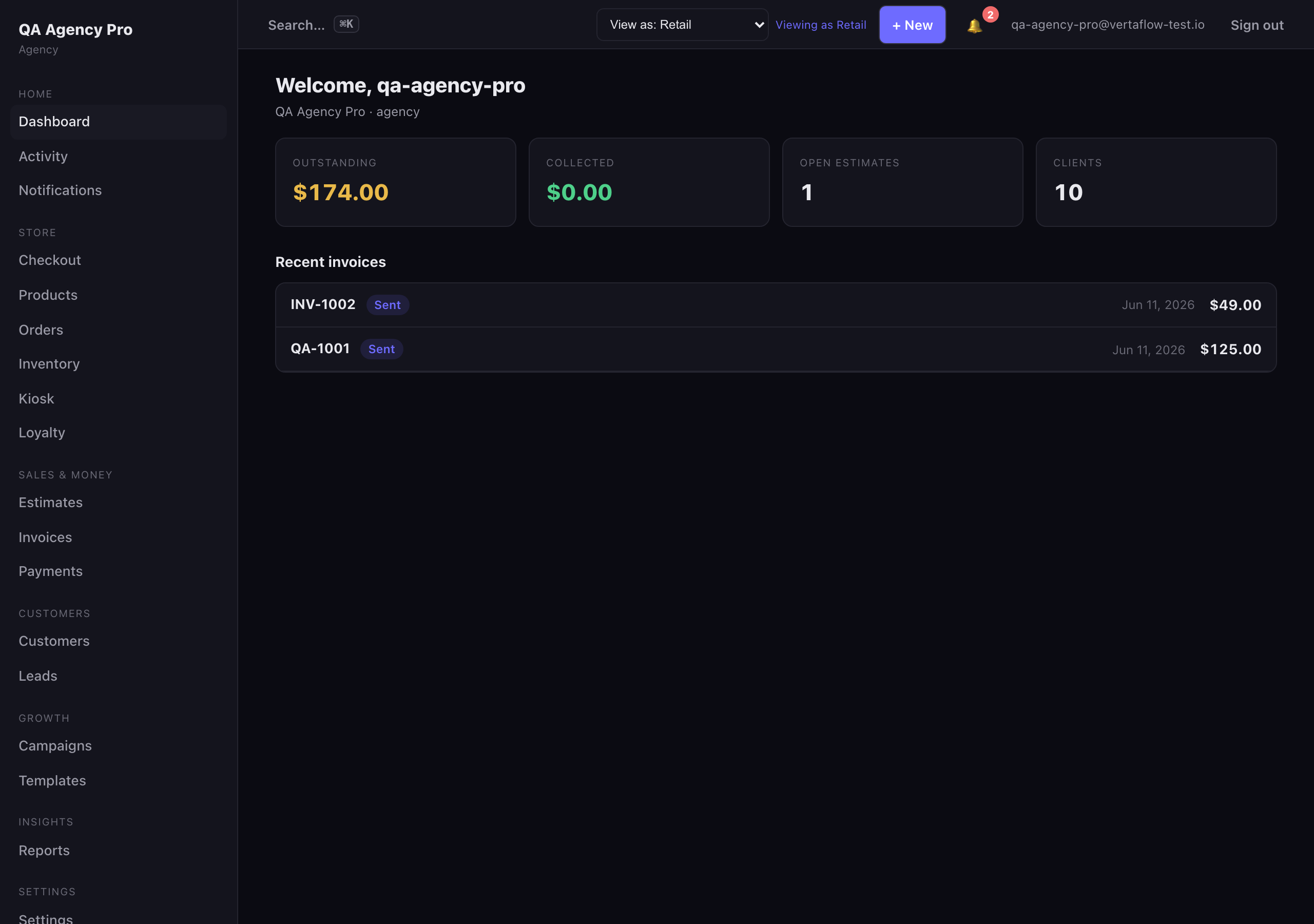
A retail workspace gets a Store group with Inventory.
You always see your own vertical
Section titled “You always see your own vertical”There is no in-app vertical switcher. A workspace always renders as its own vertical — the Operations group, every label, the bottom-tab bar, and the Checkout/catalog screens are fixed to your business type and can’t be swapped from inside the app. Your menu shows only the screens your vertical uses; it never leaks another trade’s screens.
If you’re a reseller or agency who needs to operate or demo the CRM as several business types, you don’t do it with an in-app lens. You use a separate per-vertical demo login — one real logged-in account per vertical — so each one renders natively as its own trade. See How verticals work.
The footer
Section titled “The footer”At the bottom of the rail:
- Getting started — the setup checklist
- Security — sign-in and session controls
- Profile — your name and details
- Billing — your plan and subscription
- Notifications
- Settings — the full settings hub
Top bar
Section titled “Top bar”Across the top you’ll find search, a chat status indicator, a notification bell, and your account menu (with a link to Settings and Sign out).
Cmd+K — the command palette
Section titled “Cmd+K — the command palette”Press ⌘K (Mac) or Ctrl+K (Windows/Linux) — or click the search bar — to open the command palette. It searches two things at once:
- Pages — type “estimates,” “billing,” “settings,” or “stripe” and jump straight to that screen. Category names and common synonyms are indexed, so you don’t have to remember exact labels.
- Records — clients, jobs, invoices, and estimates from your workspace, matched by name as you type.
Use the arrow keys to move, Enter to open, and Esc to close. Pages always appear first so power users land on a screen in two keystrokes.
On a phone: the bottom-tab bar
Section titled “On a phone: the bottom-tab bar”On small screens the sidebar collapses into a hamburger drawer, and a fixed bottom-tab bar gives you one-tap access to the four screens your vertical uses most. Those four are vertical-specific too:
- Restaurant — Home, Checkout, Orders, Floor
- Retail — Home, Checkout, Orders, Clients
- Wellness — Home, Appointments, Clients, Checkout
- Service pro — Home, Jobs, Appointments, Invoices
- Agency — Home, Clients, Invoices, Projects
(The first tab always reads Home — it’s the dashboard.) A Menu action opens the full drawer for everything else.
Quick create
Section titled “Quick create”A quick-create control in the shell lets you start a new record (matched to your vertical) without navigating to its list first.