
Kiosk scan station
The kiosk is an unattended scan station for your front desk. Stand an iPad up with the camera facing out, open the kiosk, and walk away. A client comes in, holds their membership card up to the lens, and VertaFlow recognizes them and routes them to the right action automatically — redeem a session, check in as a member, or just see their loyalty balance.
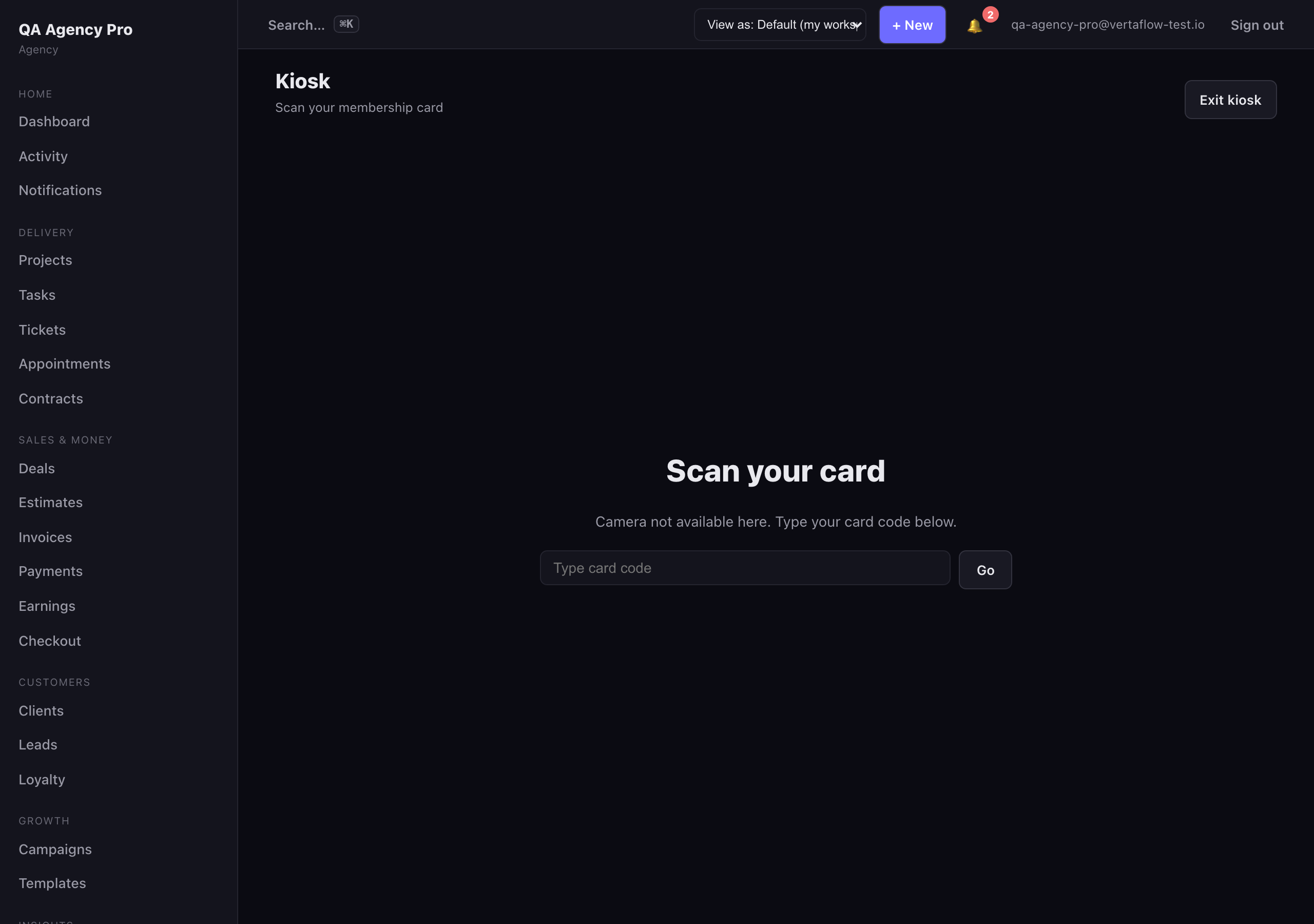
The kiosk’s scan stage — hold the card’s QR up to the camera.
Open the kiosk
Section titled “Open the kiosk”- From the sidebar, open Kiosk (or go to
/kiosk). - The first time you open it, your browser asks for camera permission. Tap Allow — the kiosk needs the camera to read cards.
- The live camera fills the screen with a scan reticle in the middle. You’re ready.
Leave this screen up on the device all day. It works on an iPad or a phone, and you can install it as an app (PWA) so it runs full-screen with no browser chrome.
What happens on a scan
Section titled “What happens on a scan”When a client holds their card to the camera, the kiosk reads the QR, looks the card up, and shows a big welcome screen with:
- Who they are — their name, front and center.
- Loyalty — their current points balance and tier.
- Memberships and packages — what they have active.
Then it picks the single most relevant action and makes it the big, obvious button:
- If they have a session package with sessions left → Redeem a session is the primary button. Tapping it burns one session and shows how many remain.
- Otherwise, if they’re an active member → Check in is the primary button.
- If they have neither, the kiosk just shows their loyalty balance.
When someone is both a member and has a package, the package action leads and a smaller Just check in button sits underneath. After a successful redeem or check-in, a confirmation appears, counts down 3… 2… 1…, and the kiosk returns to scan-ready for the next person.
No camera? Type the code
Section titled “No camera? Type the code”The kiosk never dead-ends. If the device has no camera, the browser blocks camera access, or the client’s card won’t scan, there’s always a manual fallback:
- In the Type card code field, enter the code from the client’s card.
- Tap Go.
VertaFlow resolves the code exactly as if it had been scanned, and routes to the same welcome screen and action.
Exit the kiosk
Section titled “Exit the kiosk”Tap Exit kiosk in the top-right corner to leave the scan station and return to your dashboard. The camera shuts off the moment you leave, so the camera light never lingers.
Watch the desk live — Reception
Section titled “Watch the desk live — Reception”Every kiosk scan also streams to the Reception board (/reception) — a live front-desk feed. As clients scan in, their cards appear newest-first, in real time, so a staffer at the desk can see who just checked in without standing over the kiosk. The feed seeds with the most recent scans on load, then streams new ones live, so a fresh open is never blank.
How Reception behaves depends on one setting — the verify mode — under Settings → Kiosk:
- Act immediately + audit (audit mode) — the kiosk completes the check-in or redemption right away, and each scan lands on the Reception board so the desk can Verify or Flag it after the fact.
- Require front-desk approval (approve mode) — the kiosk waits (“Waiting for the front desk…”) until a desk operator Approves or Denies the scan on the Reception board before anything is redeemed.
If the live channel isn’t available in your environment, Reception says so plainly and the kiosk still works on its own — the board is an add-on view, not a dependency.