
Mobile & install (PWA)
VertaFlow is a Progressive Web App (PWA). That means you can install it to your home screen or dock and launch it like a native app — full screen, no browser chrome — and it keeps working through spotty connections.
Installing
Section titled “Installing”When you’re signed in, VertaFlow shows an Install VertaFlow prompt. How you accept depends on your device:
Chrome, Edge, Android, Samsung Internet
Section titled “Chrome, Edge, Android, Samsung Internet”Tap Install on the prompt. The app installs to your home screen / app list / desktop and opens in its own window from then on. You can also use the browser’s own “Install app” / “Add to Home Screen” menu item if you dismissed the prompt.
iPhone / iPad (Safari)
Section titled “iPhone / iPad (Safari)”iOS doesn’t have a one-tap install button, so VertaFlow shows a hint instead:
- Tap the Share button (the square with the up arrow).
- Scroll down and tap Add to Home Screen.
- Confirm.
VertaFlow now launches from your home screen like a native app.
Dismissing the prompt
Section titled “Dismissing the prompt”Tap the × to dismiss. VertaFlow remembers your choice and won’t nag you again for 30 days. If you’re already running the installed app, the prompt never shows.
Instant cold-start
Section titled “Instant cold-start”The installed app opens instantly. Instead of waiting for the network on launch, VertaFlow paints your last-known view straight from a local cache, then quietly refreshes it in the background once data comes back. You see your workspace immediately and it updates a moment later — no spinner on every cold start.
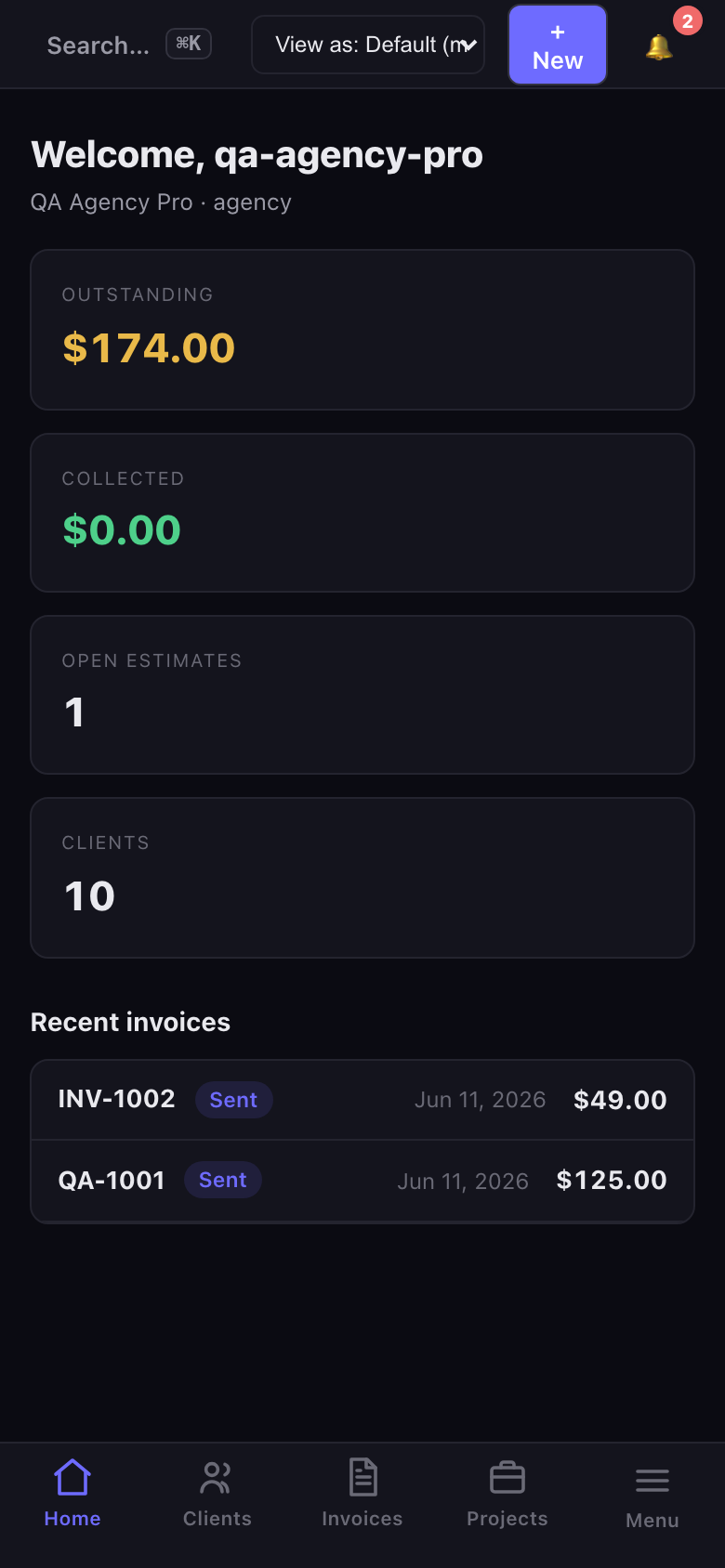
The installed app paints your last view immediately, then refreshes.
Kiosk scan station on iPad
Section titled “Kiosk scan station on iPad”The Kiosk scan station runs great as an installed app on an iPad left at the counter: members hold their card’s QR code up to the camera to check in or pay, and the station returns to scan-ready after each one. Install it from Safari (see above) for a full-screen, kiosk-style experience. See Kiosk scan station.
Working offline
Section titled “Working offline”Once installed (and after your first few visits), VertaFlow caches enough to keep running when your connection drops:
- Screens you’ve already opened stay usable.
- The app shell loads instead of a browser “no internet” error.
Anything that needs the server (saving a new record, loading fresh data, sending an invoice) will catch up once you’re back online. Treat offline as “keep viewing” rather than “keep saving everything.”
Troubleshooting
Section titled “Troubleshooting”If install isn’t appearing or offline behaves oddly, see Offline / PWA issues.