
Inventory & stock
Inventory is the running count of how much of each product you have on the shelf. It’s built so the thing you actually need — what do I have to reorder? — is the first thing you see.
What’s on the Inventory list
Section titled “What’s on the Inventory list”Open Inventory from the sidebar. You get a searchable list of every product you track stock for:
- Product — the product name.
- SKU — your stock-keeping code.
- Flag — ⚠ Low stock when a product has hit its threshold, otherwise OK.
- On hand — the current quantity, with − and + buttons to adjust it.
Low-stock items always sort to the top of the list, so the things that need attention are never buried. The page subtitle tells you at a glance how many are low (e.g. 3 low on stock). Search by product name or SKU with the box at the top.
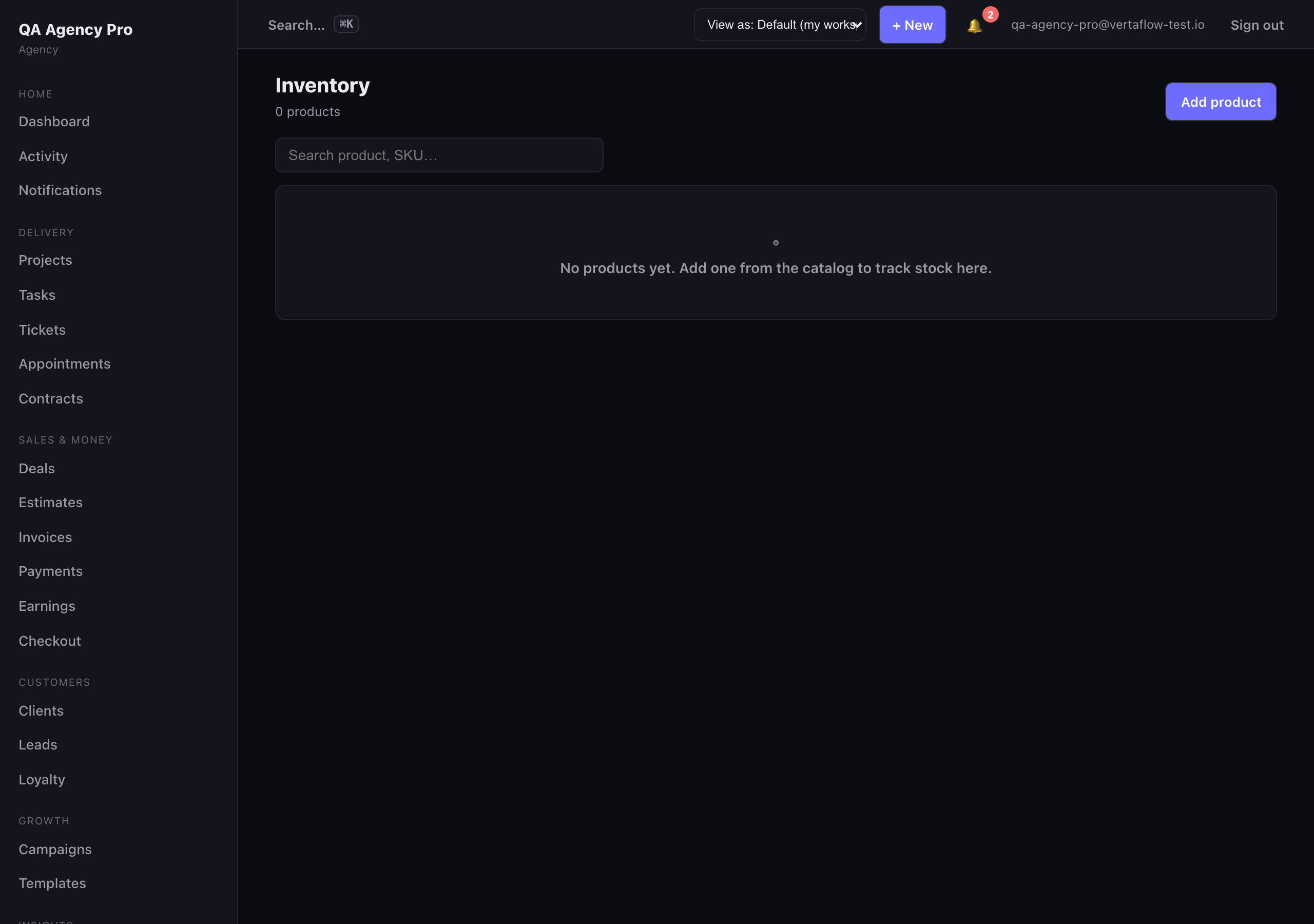
Inventory puts low-stock items first and gives you one-tap +/- adjustments on every row.
Adjusting stock
Section titled “Adjusting stock”The fastest way to correct a count is the − / + buttons in the On hand column. Each tap changes the quantity by one and saves immediately — handy when you receive a delivery or sell something off the books. Stock can’t go below zero.
For bigger changes — setting an exact quantity, or editing the SKU, price, or thresholds — click the row to open the product in the catalog editor.
Low-stock and critical thresholds
Section titled “Low-stock and critical thresholds”Each product has two thresholds:
- Low-stock threshold — when on-hand stock falls to this number or below, the product is flagged as low and (if alerts are on) a reorder alert fires. The default is 5.
- Critical threshold — an optional, lower number. When stock falls to this level, a more urgent critical alert fires. Leave it blank if you only want the single low-stock tier.
Set both on the product’s catalog editor page.
Low-stock alerts — who gets told, and when
Section titled “Low-stock alerts — who gets told, and when”VertaFlow can notify your team automatically when stock runs down, with two tiers so the right people hear about it:
- Reorder alert (the low tier) goes to the roles you pick for day-to-day restocking — for example a stock clerk or general staff.
- Critical alert (the urgent tier) goes to a separate set of roles — typically the owner and manager — so a near-stockout escalates to whoever can act on it.
Configure who gets the alerts
Section titled “Configure who gets the alerts”Choose the recipient roles under Settings → Notifications → Inventory alerts. There you can:
- Turn inventory alerts on or off.
- Set the roles that receive the reorder alert (default: staff).
- Set the roles that receive the critical alert (default: owner and manager).
See Messages & notifications for how notification delivery and roles work across VertaFlow.
How the alerts behave
Section titled “How the alerts behave”- An alert is both an in-app notification (it shows in your bell) and a push notification to the people whose roles are on the list.
- Each tier fires once when stock first crosses the threshold — you won’t get spammed with a repeat every time the count ticks down further.
- When stock climbs back above the low-stock threshold (you’ve restocked), the alert resets. The next time it dips below, you’ll be notified again.