
Invoices
Invoices are how you bill and get paid. VertaFlow can send a Stripe-hosted payment link so clients pay by card, and it also tracks cash, check, and ACH payments you record by hand.
The Invoices list
Section titled “The Invoices list”Open Invoices from the sidebar. Up top you get three summary pills:
- Outstanding — the unpaid balance across overdue invoices.
- Paid this month — total collected since the 1st.
- Overdue — a count of overdue invoices (only shows when there are any).
Filter by status (Draft, Sent, Partial, Paid, Overdue, Void) and by due date (overdue / upcoming), or search by number, email, or notes. Overdue rows are flagged in red with the number of days late.
You can select rows (checkboxes) and use the bulk bar to Mark Paid or Delete several at once, and Export CSV for the whole list.
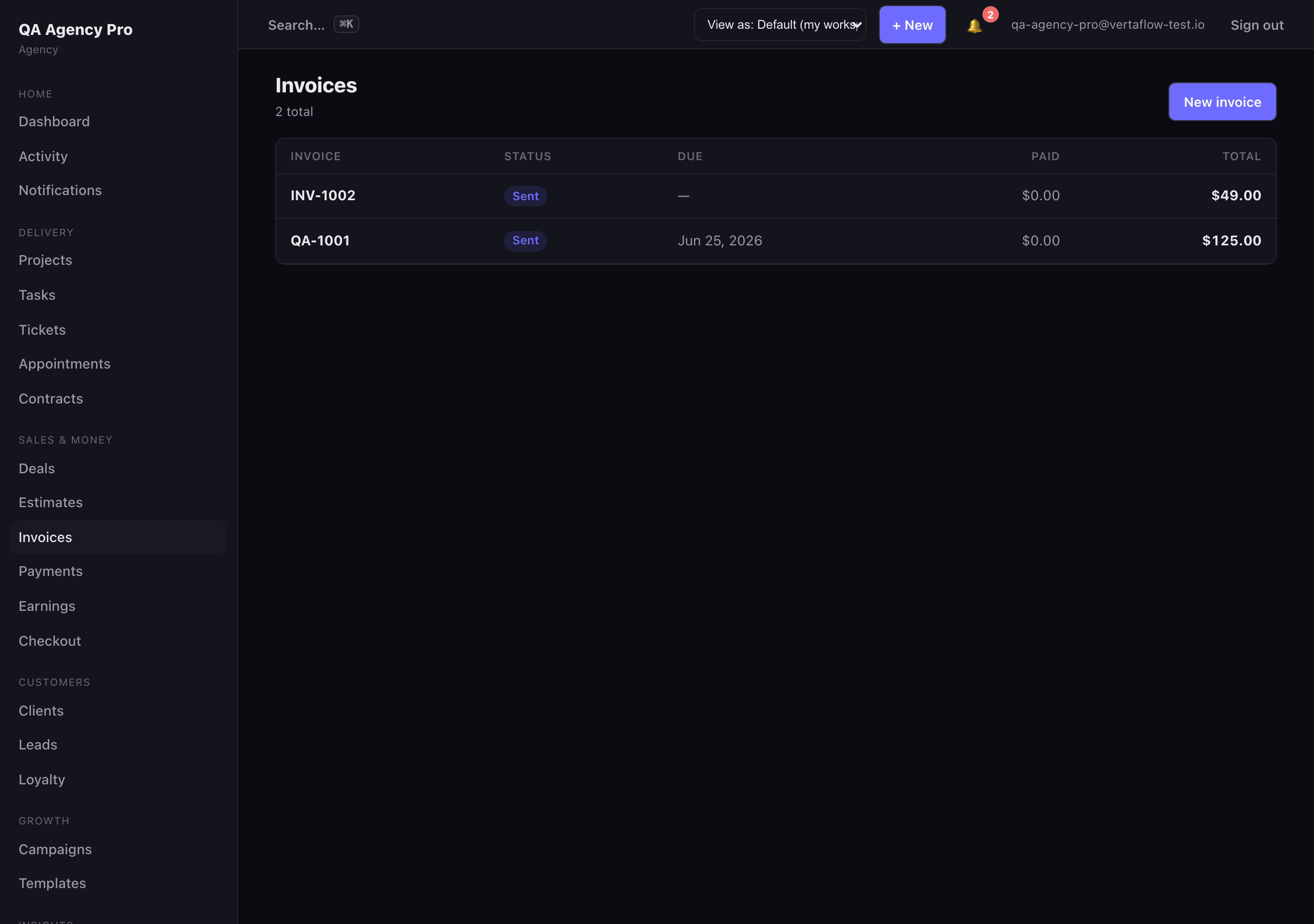
The invoices list, with summary pills and status filters.
Create an invoice
Section titled “Create an invoice”- Click New invoice — or start one from a client’s detail page, which pre-links the client.
- Add line items, tax, a due date, and any notes.
- Save. You can also reach an invoice by converting an accepted estimate (see the Estimates guide).
The “Bill to” block
Section titled “The “Bill to” block”The invoice detail page shows a Bill to block built from the linked client’s record: their name, company, email, phone, and their service / billing address. Set those once on the client (see Clients → Service / billing address) and they carry onto every invoice automatically. The same details — name, company, email, phone, and address lines — are written onto the downloadable invoice PDF, so a printed or saved invoice reads as a complete bill without any retyping.
Send a Stripe payment link
Section titled “Send a Stripe payment link”This is the fast way to get paid by card.
- On the invoice detail page, enter the client’s email.
- Click Get payment link (it reads Regenerate payment link if one already exists).
- VertaFlow creates a Stripe payment link and shows it in a highlighted panel with a Copy button. Send it to your client; when they pay, the invoice updates to paid.
Record a manual payment
Section titled “Record a manual payment”For cash, check, ACH, or a card charge you took outside VertaFlow:
- On the invoice, expand + Record manual payment.
- Enter the amount (pre-filled with the remaining balance), pick a method (Cash, Check, ACH, Other, or Stripe-manual), set the received date, and add a note like a check number.
- Click Record payment.
The payment lands in the invoice’s Payment history, and the invoice’s paid / remaining totals and status update automatically. An invoice becomes Partial when some is paid and Paid once the balance hits zero.
Print or save as PDF
Section titled “Print or save as PDF”Click Print / PDF to open a clean, printable version of the invoice in a new tab. The PDF carries the client’s full “Bill to” details — name, company, email, phone, and service / billing address — alongside the line items and totals. Use your browser’s print dialog to save it as a PDF or send it to a printer.
Void or delete
Section titled “Void or delete”- Void marks the invoice as no longer owed (available while it’s not already paid or void).
- Delete removes it entirely (you’ll be asked to confirm).