
Tasks
Tasks are your follow-ups — the calls to make, quotes to chase, and reminders that keep work from slipping. They live in their own list, and you can tie a task to a client so it sits in context.
The Tasks list
Section titled “The Tasks list”Open Tasks from the sidebar. The header shows how many tasks are open, overdue, and due today. Each row has a checkbox, the title, priority, status, and due date.
- Search by title or notes.
- Filter by status with the buttons: All, Open, Completed, or Cancelled.
- Check the box on any row to complete it — or uncheck to reopen. Completed tasks show with a line through the title.
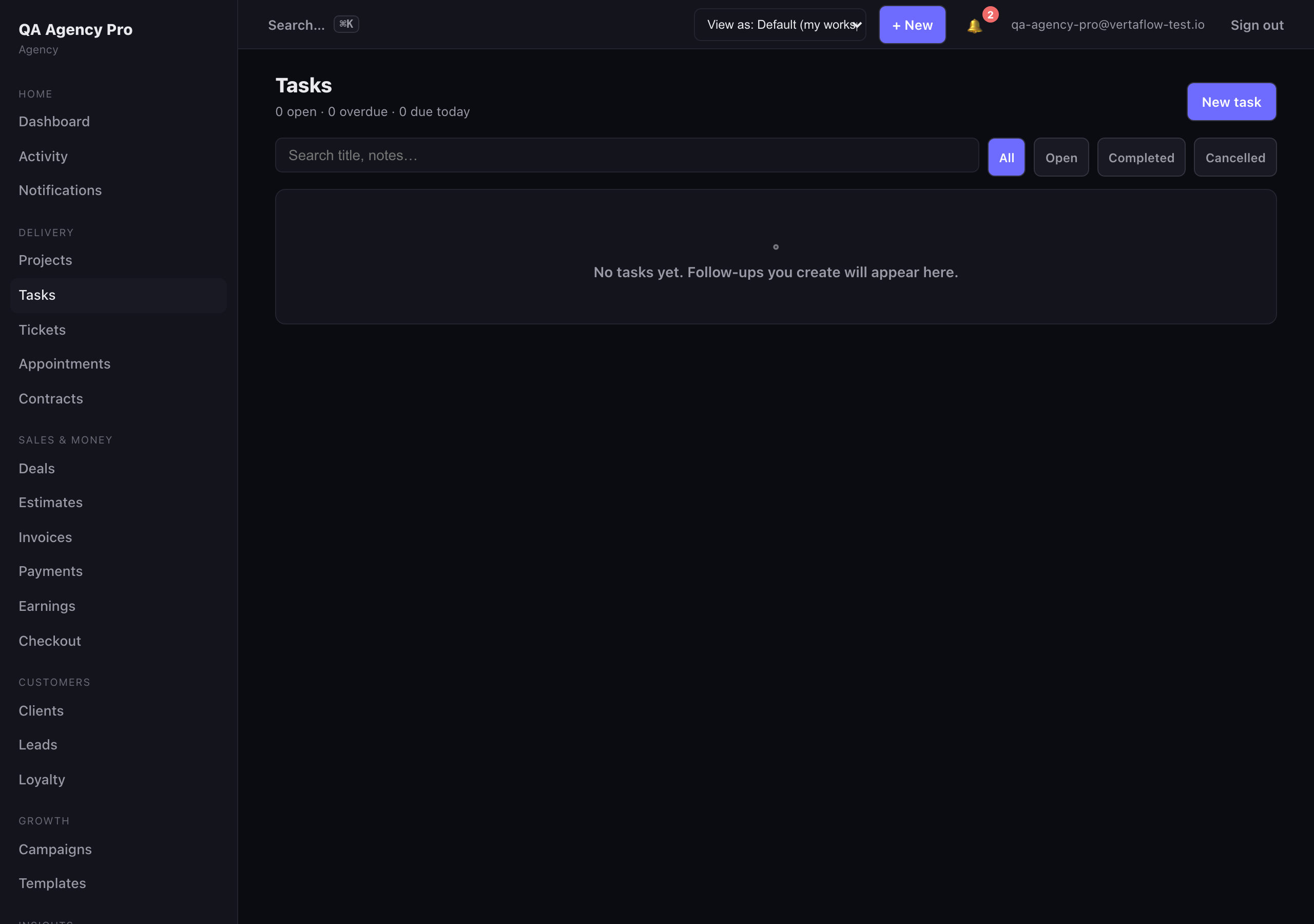
Tasks: search, filter, and check off follow-ups.
Click a row to open the task.
Create a task
Section titled “Create a task”- Click New task.
- Enter a title (required), like “Call back about quote.”
- Set a priority — Low, Normal, or High.
- Optionally set a due date.
- Optionally pick a client to link the task to.
- Add any notes, then click Create task.
You’re dropped on the new task’s page once it’s created.
Statuses and completing a task
Section titled “Statuses and completing a task”A task is one of three statuses:
- Open — still to do.
- Completed — done.
- Cancelled — no longer needed.
You can complete or reopen a task straight from the list checkbox, or open the task and use the Update status buttons to set it to Open, Completed, or Cancelled. From the task’s page you can also click Edit to change its title, priority, due date, client, or notes.