
The dashboard tour
Your dashboard is the first thing you see after sign-in (/dashboard), and it’s
the Home tab on the mobile bottom-tab bar. Like the rest of VertaFlow, it
reshapes itself around your vertical: the headline numbers, the “today” list, and
the quick actions all change to fit your trade. Numbers are real — they’re pulled
live from your workspace, not placeholders.
On the installed app the dashboard cold-starts instantly — it paints your last-known view from cache and refreshes in the background, so there’s no spinner on launch (see Mobile & install).
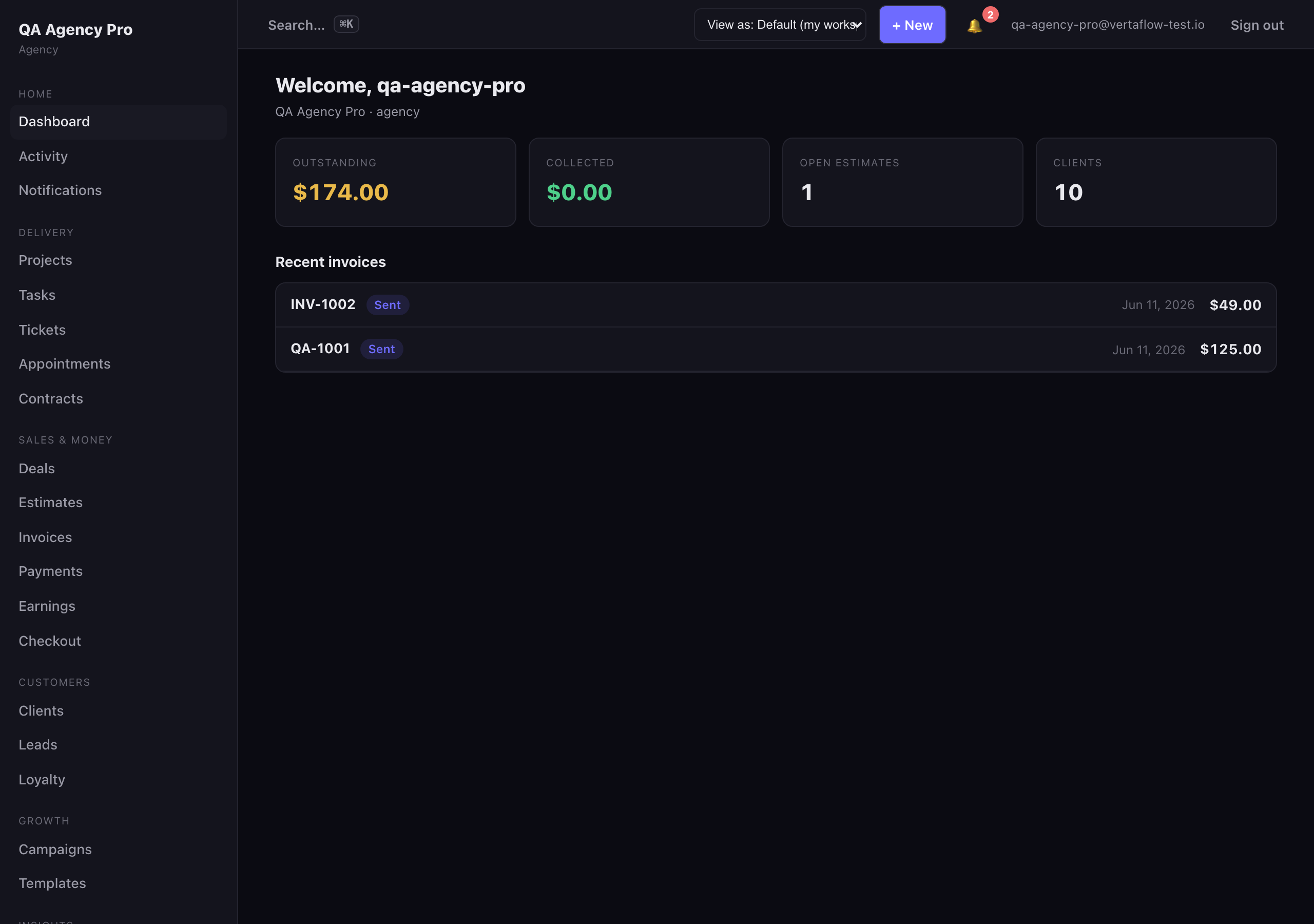
The dashboard reshapes itself around your vertical.
Reading the page, top to bottom
Section titled “Reading the page, top to bottom”Welcome header
Section titled “Welcome header”Your workspace name, a badge with your vertical (e.g. “Service Pro”), a link to
your public yourname.vertaflow.io subdomain, and today’s date. On your very
first sign-in you’ll also see a green “Welcome to VertaFlow” card.
If something needs attention — a suspended preview site, or an unfinished business intake form — a banner shows here with a link to fix it.
KPI tiles
Section titled “KPI tiles”Three headline tiles, each a clickable link to its detail screen. What they show depends on your vertical:
- Service Pro — jobs today, unpaid invoices, active clients.
- Agency — open pipeline (count + value), unpaid invoices, clients.
- Restaurant — reservations today, and so on.
- Wellness — appointments, plus a 60-day no-show and rebook rate.
Each tile may carry a small up/down delta. Click any tile to drill into the full list behind it.
Today’s schedule
Section titled “Today’s schedule”A short list (up to 5) of what’s happening today — jobs, appointments, or reservations depending on your vertical — with a count badge and a “View all” link. If nothing’s scheduled today, this section is hidden.
Quick actions
Section titled “Quick actions”Three cards linking to the actions that matter most for your trade — for example “Start a job,” “Add a client,” or “New reservation.” These are picked per vertical so the fastest next step is always one click away.
Account panel
Section titled “Account panel”A compact reference card: your workspace name, your *.vertaflow.io subdomain,
the email you’re signed in as, and your tenant ID. Handy when you contact support.
A note on the numbers
Section titled “A note on the numbers”Every tile and list reads live from your CRM. A brand-new workspace shows zeros and empty lists — that’s expected. As you add clients, send invoices, and book work, the dashboard fills in.
- Navigating the app
- Analytics for deeper cross-brand reporting
- How verticals work to understand why your tiles differ from another trade’s